Inside a lesson
The picture stays connected to the language. A lesson moves through short activities, with explanations close to the word or symbol you are exploring.
1. Discover
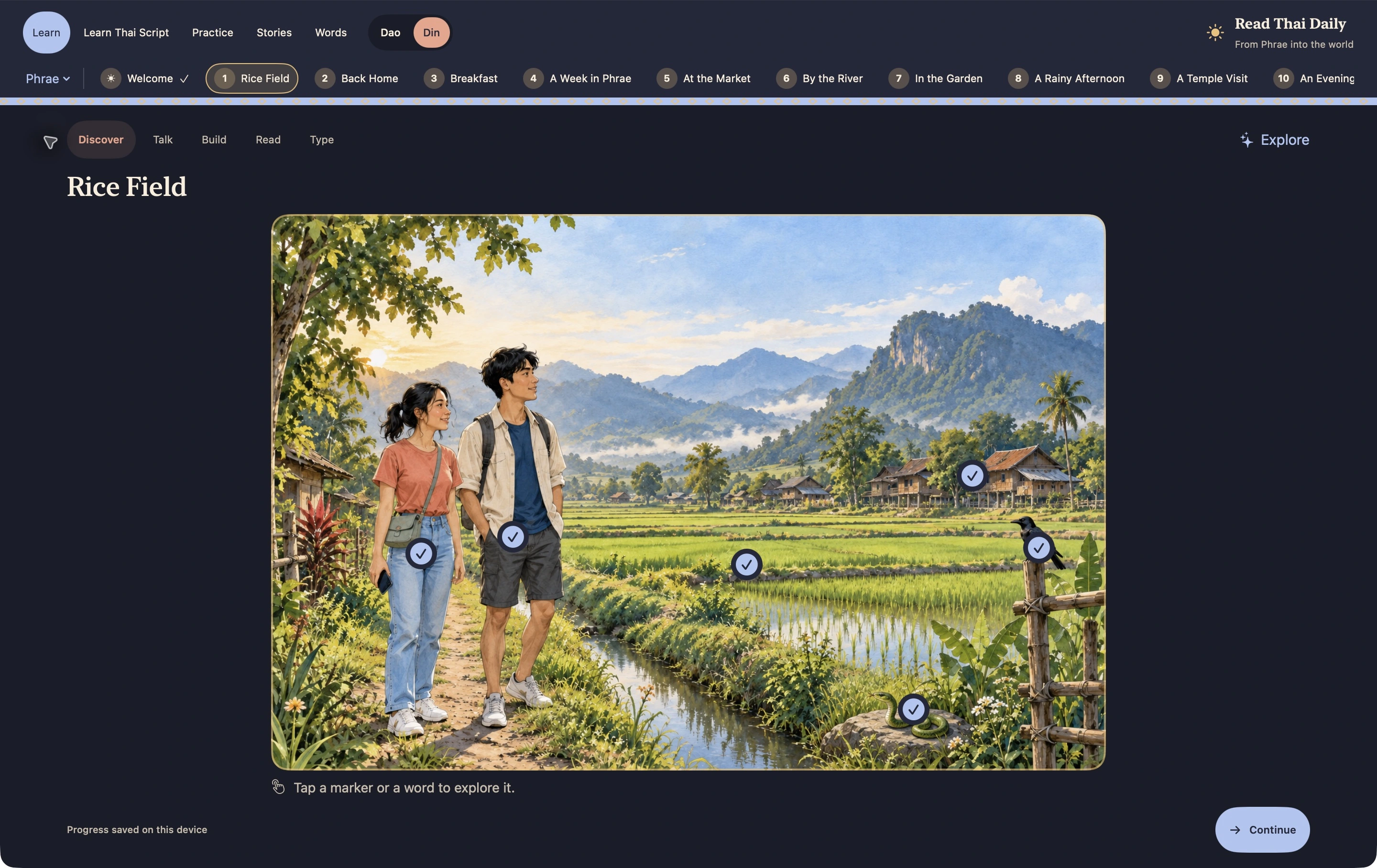
Begin with a large illustration. Tap a marker on a person, object or place to reveal the Thai word, its meaning and how it is written. Selected markers have a different highlight, so you can see what you are exploring.
2. Talk
Meet short sentences built around the scene. Thai words are individually selectable, making word boundaries easier to see. Tap a word for its explanation; tap one of its written parts to explore that consonant or vowel.
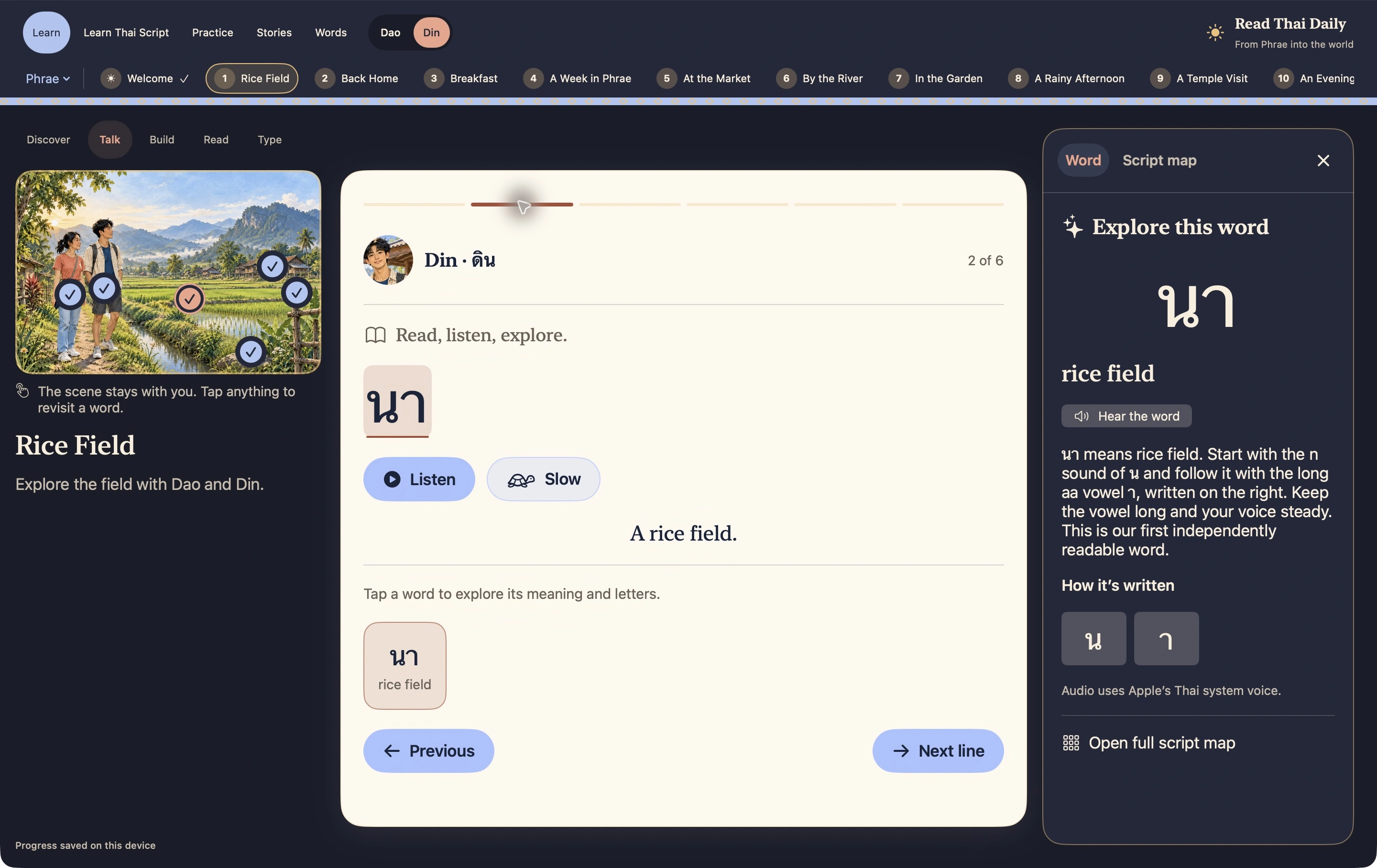
Listen uses the device’s Thai system voice. Slow uses a slower speech rate for a closer listen. Available voices depend on the device; a preferred male or female voice may not be installed, so the app can use a fallback voice.
Choose Dao or Din in the toolbar to explore the supported speaker perspectives and their appropriate pronouns or polite particles. Narrated lines can refer to either character.
3. Build
Tap or drag consonant and vowel tiles into boxes in written order. Clicking a suggested tile also opens its illustrated explanation. This connects the shapes you see with the word you are building.
For example, น and า make นา, “rice field”. The same vowel with ก gives กา, “crow”.
4. Read
Try reading the familiar material yourself, then check the meaning. In the independent reading activity, picture support is hidden until you reveal a hint. A comprehension check and the use of hints are recorded separately from your reading attempt.
The chapter ends with a longer reading and comprehension questions, using vocabulary introduced in the lessons. Lesson completion unlocks that chapter reading.
5. Type — optional
The word remains visible. Your task is to find its consonants and vowels on a Thai keyboard, rather than recall the spelling from memory. This is optional, so you can continue learning before setting up a Thai keyboard. Welcome has no Type exercise.
Your reference tools
The Words section keeps a vocabulary index and links words to the lessons where they were introduced. The Script map groups consonants and vowels, with the same pictures used in Learn Thai Script. You can also copy a Thai word from its explanation panel to look it up outside the app.